Draw Glow Comics
- 4.4
- Rating
- 5.00M
- Installs
- Free
- Price
 Analysis by App-foxy
I like drawing apps that remove the pressure to be “good” at drawing, and Draw Glow Comics takes that idea in a very specific direction. Instead of trying to imitate a full desktop illustration program, it focuses on making comic-style pictures with luminous brush effects. That narrow purpose is the reason I found it pleasant: I could open it, make a bright outline or a small scene, and stop without dealing with a crowded professional workspace.
This is a free comics app from ColorJoy, available for everyone and suitable for devices running Android 6.0 or later. It has been around since October 4, 2017, and the current version is 1.0.29. Its average rating is 4.4 from around 20 thousand ratings, while its install count has passed 5 million. Those figures suggest that the simple glow-drawing idea has found a sizeable audience, but the real question is whether that simplicity matches the way you want to create.
Why the glow brush changes the drawing experience
The central capability is the glow brush. In practice, that means the visual effect does much of the decorating for me. A basic line can look more expressive once it has a luminous edge, so I do not need to spend as much time adding texture, shading, or complicated lighting. For quick comic panels, stickers, imaginary characters, signs, stars, and colorful doodles, that is a useful shortcut.
You May Also Like

 Pandora - Music & Podcasts
Pandora’s Music Is Easy to Start, but Harder to Recover
Pandora’s strength is its low-effort path from a seed to a station. Its weak spot is how much confidence it asks you to place in connection, setup, and quiet recovery.

 8 Ball Pool
8 Ball Pool Is Built on Rivalries, Rematches, and Routine
A close look at the rivalries, rematches, shared routines, and unanswered safety questions that turn a quick pool match into a persistent mobile community.

 Samsung Music
Samsung Music’s Quiet Strength Is Playing What You Already Own
Its reach comes less from spectacle than from dependable access to a personal library. That simplicity is both the app’s strongest retention engine and its ceiling.

 AccuWeather: Weather Radar
AccuWeather Review: A Quick, Clear Forecast for Everyday Decisions
For everyday plans, the best forecast is the one you can understand quickly. AccuWeather makes rain timing, radar, and local conditions easy to act on, with a few trade-offs.

 Hill Climb Racing
Why Hill Climb Racing Still Turns Crashes Into One More Run
A tiny car, a bumpy hill and one more upgrade: Hill Climb Racing keeps resurfacing because its simple chaos makes every near-miss feel personal.

 AliExpress - Shopping App
AliExpress Makes Global Shopping Feel Personal, but Shoppers Bear the Risk
AliExpress turns a global marketplace into a pocket-sized discovery engine. Its reach is useful, its shopping loop compelling, and its trade-offs easy to miss.
More From Our News Desk
View All News

The effect also changes how mistakes feel. With ordinary drawing tools, a shaky line can look unfinished. With a glowing brush, the same line may read as energetic or deliberately stylized. That does not make every drawing successful, but it makes experimentation less intimidating. I can try a strange outline, add a bright accent, and judge the overall mood rather than obsessing over perfect anatomy or clean perspective.
There is an important distinction here: this is not the kind of comics tool I would choose for carefully inked pages, detailed character sheets, or print-ready illustration work. The glow is the attraction, but it is also the boundary. The visual language naturally favors bold, playful images. If you want subtle watercolor, realistic rendering, or precise black-and-white line art, the effect may feel too dominant.
What I enjoyed most was the immediate feedback. A glowing stroke has a visible personality as soon as it appears. That makes the app approachable for a child, a casual doodler, or anyone who wants to sketch an idea during a short break. The Everyone content rating reinforces that broad accessibility, although younger users may still need the usual guidance around device use and optional purchases.
What the effect is good at
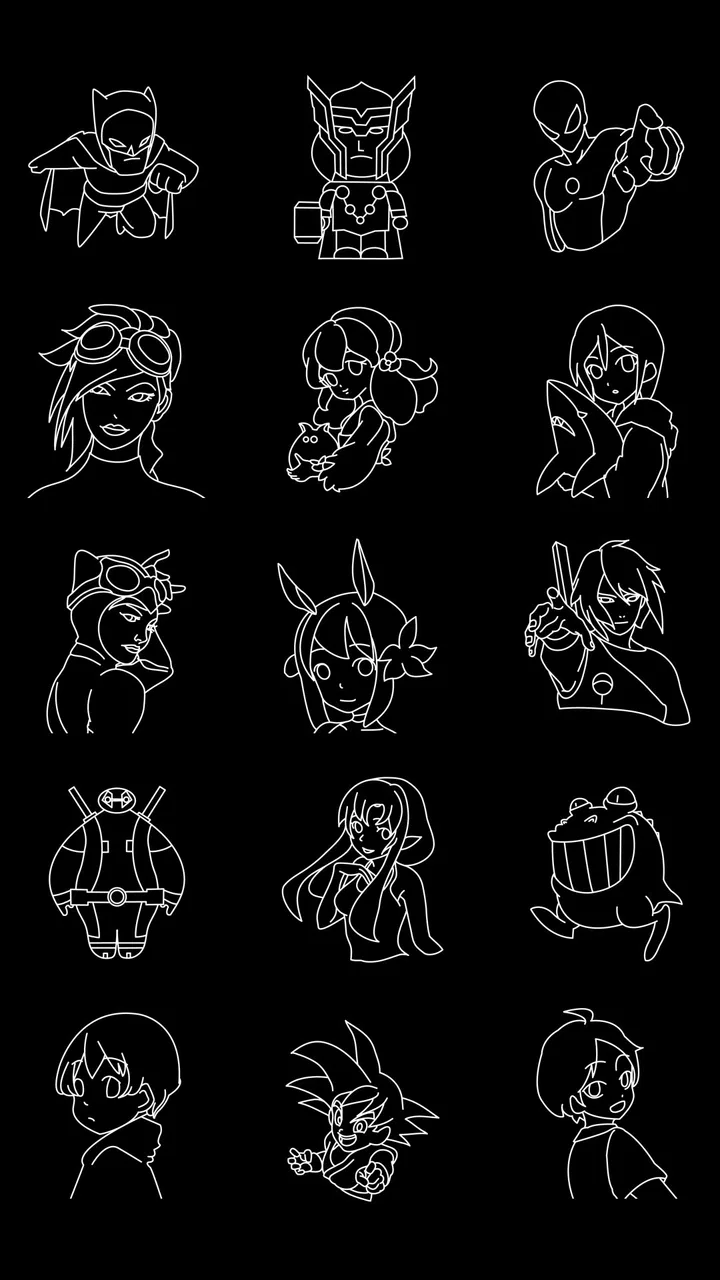
Glow works especially well when the drawing depends on contrast. Dark backgrounds and bright marks naturally make simple shapes stand out, so a small amount of drawing can produce a more finished-looking result. I found this useful for making quick greeting images, comic-style reactions, fantasy symbols, and playful profile art. The app’s store summary describes the experience as easy and relaxing, and that is a fair description of the intended mood rather than a promise of professional illustration tools.
It is also a good fit for visual brainstorming. If I am thinking about a robot, a magical doorway, a neon city, or a character with an unusual costume, I do not need to complete a polished page to test the idea. I can block out the recognizable shapes, use the glow to separate parts, and decide whether the concept has energy. That is a more useful role for this app than expecting it to replace a complete comic production workflow.
One non-obvious advantage is that the glowing treatment can help organize a small image. I can use a brighter mark for the focal point and quieter strokes for supporting details. Even without advanced composition tools, that contrast gives the eye somewhere to go. The practical tip is to avoid making every line equally intense. When everything shines with the same visual weight, the drawing can become noisy; reserving the strongest strokes for faces, symbols, or action lines usually creates a clearer result.
Using it in a short, realistic drawing session
My preferred way to use Draw Glow Comics is in short sessions rather than as a long illustration project. Imagine waiting for a friend at a café and wanting to make a quick birthday image. I would sketch a simple character, add a bright speech bubble, place a few expressive marks around the figure, and finish with a colored border or background accent. The goal is not to produce a complete comic book page. It is to create something personal that looks lively without requiring a large time commitment.
That workflow works because the app’s main visual decision is clear from the start: the glow is part of the style, not a finishing effect I have to discover after doing all the hard work. I can plan around it. A dark silhouette with a bright contour may be more effective than a detailed figure. A few large shapes may read better than many tiny marks. Thinking in those terms gives better results than trying to draw normally and hoping the luminous treatment will rescue the image.
For a small comic scene, I would build the image in visual stages. First, I would place the main character or object with broad shapes. Next, I would add the most important expression or action line. Only after that would I add decorative sparks, stars, motion marks, or background elements. This order matters because glowing details are tempting to add early, and too many of them can hide the main subject.
A second useful habit is to leave breathing room. Bright lines attract attention, so a crowded canvas can become tiring quickly. Empty space around a character can make the luminous outline feel stronger and can also leave room for a speech bubble. If the app is being used by a child, this approach is forgiving: the child can fill the page with color and light, while an adult can gently suggest one area to keep simpler so the image remains readable.
I would also save or share finished work promptly if the app offers the relevant action in the version installed on the device, rather than assuming an unfinished canvas will always be easy to recreate. That is not a criticism of the drawing concept; it is practical advice for any lightweight creative app. A quick sketch often has value because it captures a moment, and losing it would be especially frustrating after investing time in the details.
How it compares with ordinary drawing apps
Compared with a general sketching app, this one gives up breadth in exchange for a stronger identity. A conventional drawing application may offer more control over brushes, layers, selection, blending, and correction. That is better when I want to refine an illustration or build a page carefully. Draw Glow Comics is more appealing when I want the result to look distinctive quickly, without spending time configuring a large collection of tools.
Compared with a full comics editor, the difference is even clearer. Dedicated comic software is usually designed around panels, lettering, page layout, and repeatable production. This app’s value is closer to making a glowing comic-inspired picture than managing a finished publication. Someone creating a serious serialized comic should use a tool built for page structure and revision. Someone making a single playful panel may prefer the faster, less formal experience here.
There is also a difference from coloring-book apps. Coloring books normally give the user prepared outlines and make filling areas the main activity. Here, the appeal is creating the marks yourself and seeing them become luminous. That makes it more open-ended, but it also means the user has to decide what to draw. If you want a completely guided, low-decision activity, a coloring app may feel easier.
The tradeoffs behind the relaxing style
The first tradeoff is control. A glow brush can make a rough drawing attractive, but it can also make precision harder to judge. Fine details may blend into one another, especially when several bright colors are placed close together. I would not rely on this app for tiny lettering, exact diagrams, or artwork where every edge must be technically clean.
The second tradeoff is repetition. The signature effect is enjoyable at first, yet a whole collection of images built with the same luminous treatment can begin to look alike. I would treat the app as one part of a creative routine rather than the only drawing tool on my device. Switching between it and a more restrained sketching app can keep the style fresh and makes it easier to choose the right tool for each idea.
The free entry point is helpful, but optional in-app purchases cost $1.99 per item. I would pay attention to what is available before committing to a particular workflow, especially if I were setting it up for a child. The app can be tried without an upfront purchase, which lowers the barrier to testing the style, but free does not necessarily mean every creative option is included. That is a normal consideration, yet it matters more in a simple app because the available brushes or resources can have a noticeable effect on variety.
Device compatibility is another practical point. The minimum requirement is Android 6.0, so the app is accessible on many older Android devices, though the experience can still vary with screen size and hardware. On a small phone, detailed comic work may feel cramped, while a larger display gives the glowing lines more room to breathe. I would use a phone for quick sketches and choose a larger screen when I wanted to compose a fuller scene.
The app’s simplicity can be both comfortable and limiting. I did not approach it expecting the same editing depth as a professional art package, and that made the experience more enjoyable. If I had needed extensive corrections, precise panel alignment, or a complex revision history, I would have become frustrated. The right question is not whether it does everything; it is whether the glow-centered workflow is enough for the image I want to make.
Small techniques that improve the result
One technique I recommend is starting with the silhouette rather than the interior details. A recognizable outer shape gives the glow a clear job: it separates the subject from the background. Once the silhouette works, a few facial marks or costume details can communicate personality. This is faster and usually more readable than drawing every feature at the same level of brightness.
Another is to use glow as a storytelling cue. A line around a moving hand, a bright trail behind a flying object, or a sharp burst near a surprised face can suggest action without requiring a complicated animation system. In a still comic image, those marks act like visual sound effects. They should support the moment, not cover the whole canvas.
A third is to make a thumbnail first. Before spending time on decorative strokes, I would create a tiny version of the scene and check whether the main subject is obvious. If the idea only works when viewed up close, it may need stronger shapes or fewer competing details. This habit is particularly useful on a phone, where the final image may be seen at a small size in a message or social post.
For children, I would turn the app into a prompt-based activity instead of simply handing over a blank canvas. Ask for a glowing animal that lives on another planet, a superhero’s night-time rescue, or a robot sending a message through space. The prompt gives the drawing a purpose while leaving plenty of room for imagination. The app’s bright style supports that kind of playful storytelling better than a tool focused on realistic technique.
Who will get the most from it
I think this app is strongest for casual creators, children, families, and people who want a relaxing visual activity with an immediate payoff. It is also useful for someone who feels blocked by a blank page. The glow gives even a basic mark a clear visual direction, so the first step feels less demanding. If you enjoy experimenting with color and want comic-inspired images rather than formal illustration, it is easy to understand why the app has attracted more than 5 million installs.
It may also suit teachers, parents, or activity leaders looking for a short creative exercise, provided the device and purchase settings are handled appropriately. A ten-minute prompt can produce a character, a setting, and a simple action without requiring anyone to learn a complicated interface. The result is not necessarily polished, but the process encourages participation, which is often more important in a casual activity.
I would recommend skipping it if your priority is professional comic production. You will likely be happier with an app built around layers, panels, lettering, export control, and detailed brush management. I would also look elsewhere if you dislike neon or luminous aesthetics, because the defining effect is not a minor extra. It shapes the entire experience and limits how naturally the app can handle muted or realistic artwork.
Likewise, people who want guided coloring pages may find the open canvas less relaxing than expected. The app reduces technical difficulty, but it does not remove the need to invent a subject or decide how to arrange it. That freedom is a benefit for some users and a source of hesitation for others. Knowing which side you are on will tell you more than the rating alone.
My recommendation after using the glow-centered workflow
Draw Glow Comics succeeds because it understands its own appeal. It is not trying to be a complete art studio; it is a quick way to turn simple comic drawings into bright, expressive images. I found the best results came from treating the glow as a compositional tool: use it to outline the subject, guide attention, and suggest movement, rather than covering every available space with equal intensity.
The free price makes it reasonable to try, and the Everyone rating makes it approachable for a broad audience. ColorJoy has kept the concept focused, which helps beginners start quickly. At the same time, the $1.99 per-item in-app purchases mean I would check the available options before building a long-term drawing routine around it.
My honest view is that this is a good companion app, not a replacement for a serious drawing or comics workspace. I would open it when I wanted a cheerful sketch, a quick gift image, a child-friendly creative prompt, or a burst of visual experimentation. I would choose a more advanced alternative when precision, page layout, subtle rendering, or extensive editing mattered more than immediate glow.
If that balance sounds right to you, the app is worth trying. Its strongest promise is not that it will teach you to draw; it is that it can make the act of drawing feel lighter and more playful. The glow is most valuable when it helps you finish an idea instead of distracting you from it.
FAQs for Draw Glow Comics
01What is Draw Glow Comics and how does it work?
Draw Glow Comics is an innovative app designed for aspiring artists and comic creators. It provides users with a wide array of tools and features to create vibrant, glowing comic illustrations. The app includes step-by-step tutorials for beginners, allowing users to learn and improve their drawing skills while experimenting with various brushes and effects.
02Is Draw Glow Comics suitable for beginners?
Yes, Draw Glow Comics is highly suitable for beginners. The app offers detailed tutorials and guides to help new users understand the basics of drawing and comic creation. Its user-friendly interface ensures that even those with no prior experience can easily navigate the app and start creating their own glowing comics.
03What are the main features of Draw Glow Comics?
Draw Glow Comics comes equipped with a variety of features, including a wide selection of brushes, glowing effects, and a color palette to enhance your drawings. Users can also access pre-made templates and tutorials. The app supports layer-based editing, allowing for complex compositions and easy corrections.
04Does Draw Glow Comics offer any in-app purchases?
Yes, while Draw Glow Comics is free to download, it offers in-app purchases. These may include additional brushes, templates, and advanced features. The purchases are designed to enhance the creative experience but are not necessary for basic functionality, allowing users to enjoy the app without spending money.
05Can I share my creations from Draw Glow Comics on social media?
Absolutely! Draw Glow Comics allows users to easily share their creations on various social media platforms. The app includes a sharing feature that lets you export your work in high quality, making it simple to showcase your glowing comics to friends and followers on platforms like Instagram, Facebook, and Twitter.
Pros
- Intuitive interface for easy drawing.
- Wide selection of brushes and colors.
- Supports multiple layers for complex art.
- Offline mode available for uninterrupted creativity.
- Regular updates with new features.
Cons
- Limited export options for finished art.
- No integration with cloud storage services.
- Occasional lag on older devices.
- Ads can be distracting during use.
- In-app purchases for advanced tools.

Draw Glow Comics
Gallery